Under a Minute: Work Ready YouTube Summaries, Prompts and Verification
Under a Minute: Work Ready YouTube Summaries, Prompts and Verification

The fastest reliable way to summarize YouTube for work is a two-step process: transcribe the audio, then have an AI model turn that transcript into a structured brief. Use a one-click extension instead when the captions are already clean and speed matters more than precision. Either way, expect an executive summary, a list of action items, and timestamped chapters as your output, and Baitless gives you 25 free credits to test the workflow today.
TL;DR:
- Caption-based summarizers are faster but may miss technical terms and garbled names, making them suitable for casual videos with accurate auto-captions.
- Transcription-first workflows are slower but provide cleaner, more accurate input, especially for videos without captions or with heavy accents or jargon.
- For optimal results, test all three methods on short clips to determine which best balances speed and accuracy for your typical video content.
- Use specific prompts like requesting a five-sentence summary and action items to produce ready-to-use, well-structured outputs.
- Always verify key figures and quotes against the source video to prevent errors from automated summaries before sharing them widely.
Table of Contents
- How Do YouTube Summarizers Actually Work?
- Which Workflow Should You Run Right Now?
- What Prompts Actually Produce Usable Work Output?
- Which Summary Format Fits Which Work Task?
- What Should You Verify Before Sharing a Summary?
- Perspective: Video Stops Being a Time Sink Once It’s Searchable
- Try Baitless and See Your First Summary in Under a Minute
- Sources
- FAQ
How Do YouTube Summarizers Actually Work?
Every summarizer falls into one of two camps, and the difference matters more than most people realize before they’ve been burned by a bad summary in a client meeting.
The first approach reads YouTube’s existing captions. An extension like Baitless grabs the caption track straight from the platform, feeds it to a language model, and returns a summary in seconds. It’s the fastest option because there’s no transcription step at all, but it inherits every flaw already baked into the captions, including missed technical terms, garbled names, and auto-punctuation that turns a complex sentence into three fragments.
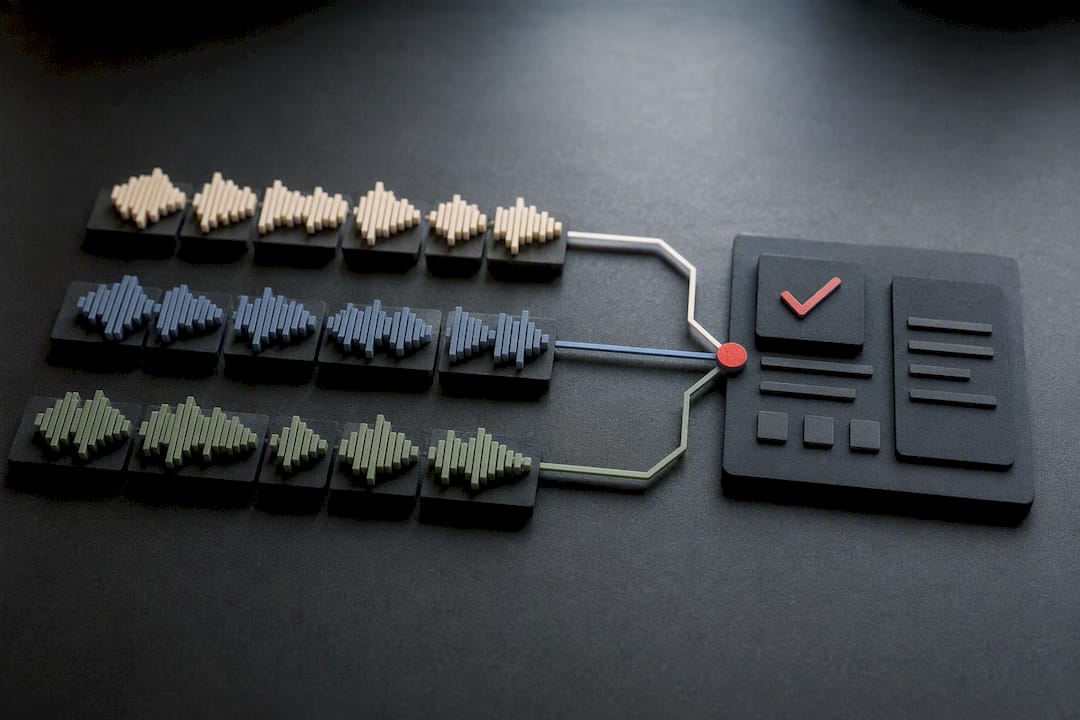
The second approach is transcription-first. You pull the audio, run it through a speech recognition engine like Whisper, and only then summarize the resulting transcript. This method handles accented speech, jargon-heavy webinars, and videos with no captions at all, and it consistently produces cleaner input for the summarizer.
- Caption-read extensions: fastest, best for casual or low-stakes videos
- Transcription-first pipelines: slower, but far more reliable for technical or accented audio
- Chunking: long videos get split into 20 to 30 minute segments before summarization, then merged into a “summary of summaries”
Multi-format summarizers can return a full breakdown in roughly 30 to 35 seconds for many videos, according to Musely’s video summarizer, which offers six output formats and five length tiers. That speed is why the caption-read route wins for anything you’re skimming rather than citing.
Which Workflow Should You Run Right Now?
Pick your method based on what the video gives you and what your job actually needs. Here are three you can run today.
Method A: Extension or URL paste. Open the video, click the extension, paste the URL if needed, and get a summary in under a minute. This works best when captions are already accurate. It’s the right call for internal training videos, product demos, and anything with clean auto-generated subtitles.
Method B: Transcript into ChatGPT or Claude. Pull the transcript from YouTube’s own “Show Transcript” panel, strip out timestamps and filler words, and paste the cleaned text into ChatGPT or Claude with a specific prompt (more on those prompts below). This gives you more control over the output structure than a one-click tool, at the cost of a few extra minutes of manual work.
Method C: Download, transcribe with Whisper, then summarize. Download or record the audio, run it through Whisper, split anything over 30 minutes into chunks, and summarize each chunk before merging them into one document. This is the slowest method and the most accurate, and it’s the only reliable option for videos without usable captions.
- Identify whether the video has clean captions
- If yes, try Method A first
- If no, or if accuracy is critical, use Method C
- Use Method B when you need a custom prompt structure the extension doesn’t offer
Pro Tip: Run a 90-second test clip through all three methods once. You’ll learn within five minutes which one your team actually needs for your typical video length and audio quality.
Speed favors extensions, accuracy favors Whisper, and language robustness favors transcription-first pipelines over relying on YouTube’s native captions.
What Prompts Actually Produce Usable Work Output?
Generic prompts produce generic summaries. Specific prompts produce something you can paste into an email without editing.
For an executive brief, try this: “Summarize this transcript in exactly 5 sentences covering the main argument, then list 5 action items with an owner and deadline if mentioned.” That structure forces the model to separate narrative from next steps instead of blending them into one paragraph.
For timestamped chapters, ask: “Break this transcript into chapters based on topic shifts. For each chapter, give the timestamp and a 1 to 2 sentence description.” This format works well for training videos and long panel discussions where someone will want to jump to a specific segment later.
For repurposing content, try: “Generate 3 headline options, 2 social post drafts, and one newsletter paragraph summarizing the key insight from this video.”
- Executive brief prompt: 5 sentences plus 5 action items
- Chapter prompt: timestamp plus short description per topic shift
- Repurposing prompt: headlines, social drafts, newsletter paragraph
Treat every first output as a draft, not a final. Iterating on the initial summary by asking the model to expand a thin section or pull a verbatim quote usually catches details the first pass glossed over.
Which Summary Format Fits Which Work Task?
Match the output to who’s going to read it, not to whatever format the tool defaults to.
An executive brief works when someone needs a decision in under a minute; a timestamped chapter list works when someone needs to verify or revisit a specific claim. Researchers and analysts generally want the second option, plus direct quotes, because they need to trace a conclusion back to its source.
When you’re logging action items into a tracker like Asana or Jira, format each one with three fields: owner, deadline, and the exact transcript line it came from. That third field is easy to skip and the one that saves you the most time later when someone disputes what was actually said.
Quote extraction is useful for research, but every extracted quote needs a timestamp check against the source video before it goes into a report. Workspace converters like Taskade already build decision and action-item extraction into their output, which shows how far this pattern has moved from novelty to standard workplace practice.
- Executive brief: for decisions, sent by email or Slack
- Timestamped chapters: for research and reference, stored in Notion
- Action items: owner, deadline, source line, pasted into your tracker
What Should You Verify Before Sharing a Summary?
An AI summary is a draft, not a source. Treat it that way and you’ll avoid the one mistake that erodes trust in these tools fastest: sharing a wrong number because nobody checked it against the video.
Run through this before you hit send:
- Cross-check every number, date, or dollar figure against the transcript or the video itself
- Flag any segment the model seemed unsure about and re-transcribe it if the audio was unclear
- Use speaker diarization for interviews or panels so quotes stay attributed to the right person
- Attach the full transcript alongside the summary so colleagues can verify provenance themselves
Whisper Large-v3 pipelines generally produce more reliable transcripts than YouTube’s auto-captions, which matters most for technical or heavily accented audio where a caption error can quietly become a summary error.
Pro Tip: If a meeting has three or more speakers, always turn on diarization before summarizing. Losing attribution on a decision is worse than losing the decision entirely.
Perspective: Video Stops Being a Time Sink Once It’s Searchable
The real shift isn’t speed. It’s that a 90-minute webinar becomes a document your team can search, cite, and reuse across projects instead of a link nobody rewatches. Teams that adopt summary-first habits tend to onboard new hires faster, because a new employee can read three chapter breakdowns in the time it would take to watch one recording.
The catch is governance. Someone has to own verification for anything high-stakes, and transcripts need a central home instead of scattering across personal drives. Skip that step and you’ve traded slow video for fast misinformation.
— Sergio
Try Baitless and See Your First Summary in Under a Minute
Baitless is the extension that turns any YouTube video into a breakdown of what to watch and what to skip, without asking you to download software or paste anything into a separate app.

You get concise, AI-generated summaries with highlighted key moments and clear guidance on which parts of a video deserve your attention. The free plan includes 25 summary credits, which is enough to test it across a week of meetings, webinars, and research videos before deciding if you need more. Heavy users can subscribe for expanded credits to accommodate daily use.
Getting started takes three steps: install the extension, open any YouTube video, and click to generate your summary. If you’re already spending hours a week skimming long videos for the two or three points that actually matter, try Baitless and see how much of that time comes back.
Sources
For a deeper look at transcription-first workflows, VOCAP’s step-by-step guide covers Whisper-based summarization and chunking long videos in detail. VexaScribe explains why Whisper Large-v3 outperforms auto-captions on accuracy, especially for accented or technical speech. For interactive, chat-based approaches to querying video content after summarization, AmmarAI’s AI chat tool demonstrates how a summary can become a searchable conversation instead of a static document.
- Summarize a YouTube Video with AI (2026): Step-by-Step
- Video Summarizer — AI Summary from YouTube or Upload | Musely
- Video Summarizer — AI Summary from YouTube or Upload | VexaScribe
- AI Video-to-Executive Summary Converter — Taskade
FAQ
Is There Any Way to Summarize YouTube Videos for Free?
Yes. Baitless offers 25 free summary credits with no subscription required, and pulling a transcript manually and pasting it into a free-tier AI chat tool costs nothing but a few minutes.
Can ChatGPT Summarize a YouTube Video?
ChatGPT can’t watch a video directly, but it can summarize one once you paste in the transcript, which you can pull from YouTube’s own transcript panel or generate with Whisper first.
Can Copilot Summarize a Video?
Copilot works the same way as ChatGPT here: it needs the text of a transcript pasted in or attached, since it doesn’t process YouTube video files on its own.
How Do I Summarize a YouTube Video for Free Without Losing Accuracy?
Use the transcript-paste method with a free AI chat tool for accuracy, or use Baitless’s free credits for speed. If the video lacks clean captions, running the audio through Whisper first will give you a far more reliable transcript to summarize.
What’s the Difference Between Extension Summaries and Transcription-First Summaries?
Extension summaries read existing captions and return results almost instantly, while transcription-first methods generate a fresh transcript with Whisper before summarizing, trading a bit of speed for meaningfully better accuracy on technical or accented audio.