Summarize Live Streams via Transcript in 5 Min for Busy Viewers
Summarize Live Streams via Transcript in 5 Min for Busy Viewers

The fastest reliable way to summarize a recorded YouTube live stream is to pull the transcript first, then run it through an AI summarizer that returns a timestamped, structured breakdown. A tool like Baitless does this in one click through its Chrome extension, with no manual transcript work. Expect an executive summary plus several bullet takeaways in under five minutes, but treat it as a first pass. Verify anything that matters before you quote it.
TL;DR:
- Summarizing a live stream using transcript-based AI tools generally takes under five minutes, including verification and chunking for long videos.
- The best summaries include a clear executive overview, timestamped chapter breakdowns, and 3 to 7 bullet points highlighting key claims or decisions.
- Spot-checking claims against specific timestamps and requesting direct quotes improves accuracy, especially for critical or cited information.
- Summaries of uncaptioned streams require automatic transcription first, which can add brief extra processing time, especially for long or noisy recordings.
- Most summarizers rely on existing platform captions, with browser extensions offering the most seamless, real-time summary experience inside YouTube.
Table of Contents
- What Makes a Good Summary of a Live Stream Recap
- How to Summarize a Stream in Under Five Minutes
- How Do AI Summarizers Actually Work?
- How Do You Know a Summary Is Accurate?
- Which Summary Format Should You Use?
- Handling Interruptions and Gaps in Stream Data
- Real-Time Summaries Versus Summarizing After the Stream Ends
- Do Summarizers Work Inside Streaming Platforms?
- Privacy and Consent When Summarizing Live Streams
- How I Actually Use Stream Summaries Day to Day
- Baitless: Get Summaries Before YouTube Gets Your Attention
- Sources
- FAQ
What Makes a Good Summary of a Live Stream Recap
A three-hour stream buried in your “watch later” list isn’t a viewing problem, it’s a triage problem. You don’t need to watch it. You need to know if it’s worth watching, and if so, which twelve minutes matter. That’s the entire value of a live event summary: it turns a time commitment into a quick decision.
A summary earns its keep when it gives you enough to act on. Vague one-liners like “great conversation about marketing” tell you nothing. A useful stream highlights breakdown includes:
- A one-paragraph executive takeaway that answers “should I watch this?” in plain language
- Three to seven bullet takeaways covering the actual claims, decisions, or announcements made
- A chapter or section breakdown mapped to what happened when
- Clickable timestamps so you can jump straight to the moment that matters
AI summarization tools reduce information overload by doing the extraction work a human would otherwise do manually, and that’s the real time savings. A summary is enough when you’re deciding whether to invest 90 minutes, or when you just need the announcement, the number, or the decision that came out of a meeting. Rewatch when you need tone, nuance, or a segment where wording itself is the point, like a legal ruling or a technical demo.
How to Summarize a Stream in Under Five Minutes
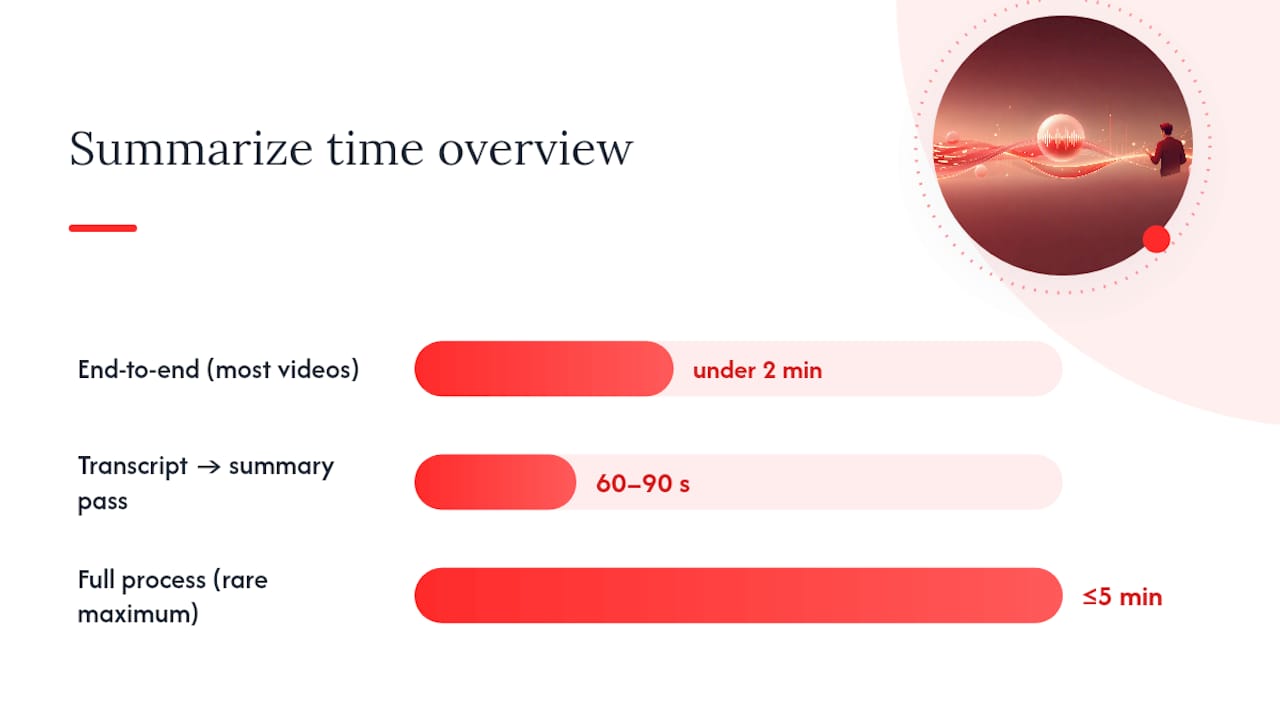
You don’t need a complicated setup. The whole workflow runs on three steps, and most videos take under two minutes end to end.
- Fetch the transcript. YouTube auto-generates captions for most videos. Click the three-dot menu below the video, select “Show transcript,” and copy the text. If captions are missing or garbled (common with heavy accents, music breaks, or crosstalk during multi-guest streams), a transcript extractor or a tool that transcribes audio directly fills the gap.
- Summarize the transcript. Paste it into an AI summarizer, or let a browser extension do it automatically without the copy-paste step. Ask specifically for a structured output: an executive summary, bulleted takeaways, and timestamped chapters. This single request changes a mediocre summary into an immediately usable one.
- Verify before you rely on it. Spot-check two or three of the summary’s biggest claims against the transcript timestamps. If something sounds off, or too clean, that’s your cue to jump to that exact moment in the video.
A full transcript-to-summary pass typically runs about 60 to 90 seconds for a video of normal length, meaning the whole process from opening the video to reading your summary rarely exceeds five minutes.
Long streams need one adjustment: chunking. A three-hour panel discussion can blow past an AI model’s context window, so breaking the transcript into segments and summarizing each chunk separately keeps the output accurate instead of vague. For technical streams (a product demo, a coding walkthrough, a research presentation), narrow your prompt. Instead of “summarize this,” try “list every tool, number, and decision mentioned, with timestamps.” Specific prompts return specific answers.
Pro Tip: If a summary reads suspiciously smooth or generic, it’s usually a sign the tool paraphrased too aggressively. Ask it to pull direct quotes with timestamps instead of a paraphrase, and compare the quote against the actual transcript line.
How Do AI Summarizers Actually Work?
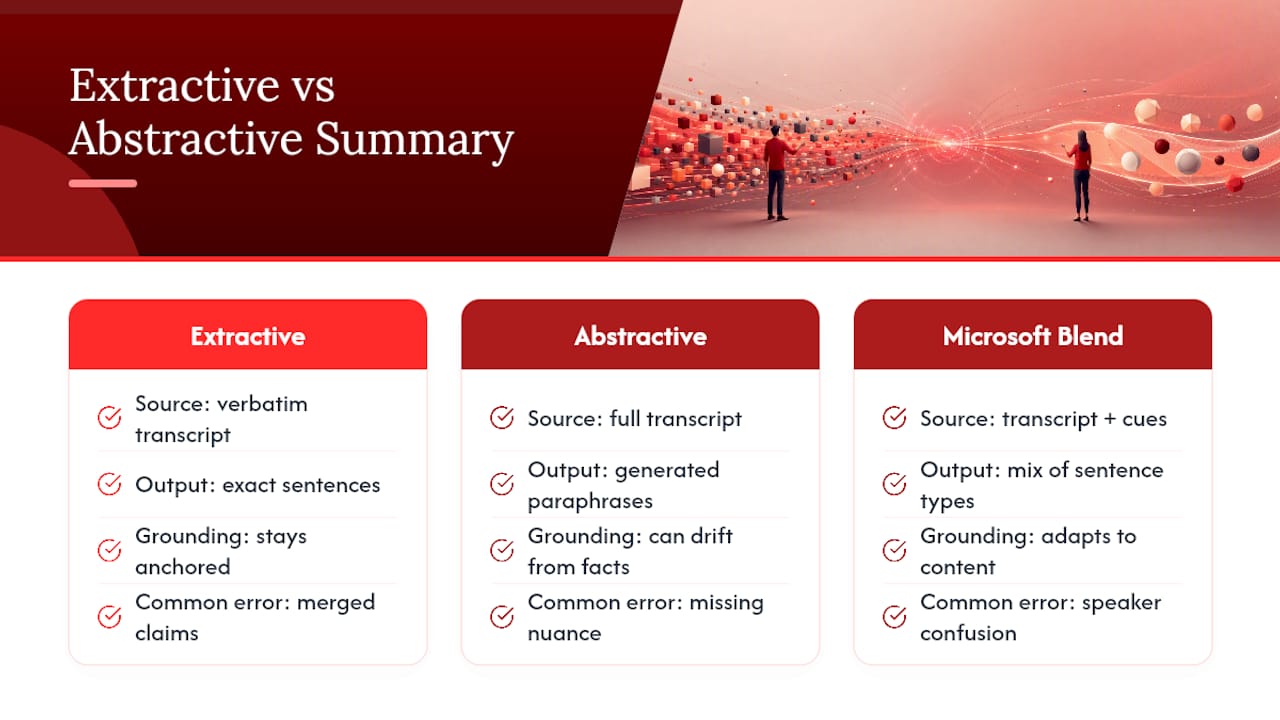
Two approaches dominate: extractive and abstractive. Extractive summarization pulls the most important sentences verbatim from the transcript and stitches them together. Abstractive summarization reads the whole transcript and generates new sentences that capture the meaning, similar to how a person would paraphrase a conversation for a coworker. Microsoft’s own AI summarizer uses a blend of both, depending on the content type.
Grounding matters more than the method. A summarizer that works directly from the video’s transcript stays anchored to what the speaker actually said. One that guesses from a title, thumbnail, or partial captions is far more likely to invent details that sound plausible but never happened.
Watch for three common failure modes: merged claims (two separate points from different speakers combined into one), missing nuance (a hedge like “we’re exploring this” turned into “we’re doing this”), and speaker confusion in multi-guest streams, where the summary attributes a comment to the wrong person. None of these are dealbreakers. They’re just reasons to spot-check before you repeat something as fact.
How Do You Know a Summary Is Accurate?
Trust comes from a quick habit, not a leap of faith. Click the timestamp next to any claim that matters, and YouTube jumps straight to that second of the video. Thirty seconds of listening tells you whether the summary got it right.
For anything you plan to cite or share, ask the summarizer directly for quotes tied to timestamps rather than paraphrases. This forces the tool to point at the exact source rather than blend several statements into one.
- Spot-check the two or three claims most likely to matter to your decision
- Request quotes, not paraphrases, when precision counts
- Rewatch a segment fully if the summary conflicts with your own memory of the stream
- Prompt with constraints like “only use sentences that appear in the transcript” to cut down on invented details
Slack’s own guidance on AI-generated recaps treats summaries as a way to reach the source faster, not a replacement for reading it.
Pro Tip: When a summary makes a bold claim with no attached timestamp, that’s the one to verify first. Missing timestamps often mean the AI inferred rather than extracted.
Which Summary Format Should You Use?
Different goals call for different outputs, and asking for the wrong one wastes the time you were trying to save.
- Executive summary: best for a fast watch/skip decision. One paragraph, no jargon, answers “is this worth my time.”
- Bullet takeaways: best for notes, team updates, or sharing with someone who wasn’t there.
- Chapter breakdown with timestamps: best for citing specific moments or rewatching only the segment you need, like the Q&A at the end of a keynote.
Once you have a summary, save it somewhere searchable. Copying it into a notes app or a personal knowledge base beats leaving it buried in a chat thread, especially if you’re building a habit of tracking recurring topics across multiple streams over weeks or months.
Handling Interruptions and Gaps in Stream Data
Live streams break. Connections drop, a host mutes the wrong mic for ten minutes, or a platform issue cuts a segment entirely. When a recording has gaps, a transcript built from that recording inherits the same gaps, and a summary built from an incomplete transcript will have blind spots.
The fix is to know what you’re looking at before you trust the output. If the auto-generated captions skip a chunk of the stream (common when a stream briefly goes offline and YouTube stitches the footage back together), the summarizer only sees what made it into the transcript. It can’t summarize a conversation it never received.
A few practical habits handle this well. First, scan the transcript length against the video’s runtime. If a 90-minute stream produces a transcript that reads like 40 minutes of dialogue, something is missing, and no summarizer will flag that gap for you unless you check yourself. Second, ask the summarizer to note uncertainty rather than smooth over it. A prompt like “flag any point where the transcript seems to skip or jump” catches more gaps than a generic summarize request. Third, treat summaries of multi-part or resumed streams as segment-by-segment work rather than one continuous narrative. A stream that restarted after a technical outage is really two recordings glued together, and summarizing them separately, then combining the results, produces a more reliable live stream recap than forcing one pass across the seam.
Real-Time Summaries Versus Summarizing After the Stream Ends
There’s a real difference between summarizing a stream as it happens and summarizing it once it’s over, and the two solve different problems.
Real-time approaches try to caption and condense a stream live, useful for someone following along who wants a running log without watching every second. But live summarization works with partial information by definition. The stream isn’t finished, so the tool can’t know which early comment turns out to matter three hours later. It also has to process much faster, which tends to favor extractive shortcuts over the kind of context-aware summary that abstractive methods can produce with more time.
Post-event summarization starts once the full recording and complete transcript exist. That’s a meaningful advantage: the summarizer sees the whole arc of the conversation, not just what’s happened so far, and can weight the actual highlights instead of guessing which moments will matter later. It can also apply chunking for long content, cross-reference earlier and later segments, and catch callbacks a live tool would miss entirely.
For most of the use cases busy viewers actually have, deciding whether to watch a recorded keynote, prepping for a meeting based on a stream from yesterday, catching up on a lecture, post-event summarization is the better fit. It trades immediacy for completeness, and completeness is usually what you’re after when you’re making a watch or skip decision after the fact.
Do Summarizers Work Inside Streaming Platforms?
Most transcript-first summarizers don’t need deep platform integration to be useful. They work by pulling the video’s existing transcript or captions, which YouTube already generates for the vast majority of uploaded and archived live streams. That’s the entire mechanism, no special partnership or API access required on the viewer’s end.
Browser extensions take this further by sitting directly inside the platform you’re already using. Instead of copying a URL into a separate tool, an extension like Baitless reads the page you’re on and generates the summary without you leaving YouTube. That’s a meaningfully different experience than juggling tabs between a video and a third-party summarizer, and it’s the direction most practical tools are heading.
The limitation worth knowing: a summarizer can only work with what the platform makes available. If a stream has captions disabled entirely and no transcript exists, the tool needs to transcribe the audio itself first, which adds a step and, on longer streams, adds processing time. Some dedicated summarizers handle this automatically by transcribing uncaptioned video before summarizing it, but it’s worth checking that a tool supports this before you rely on it for a stream you know has no captions.
For teams using summaries alongside webinars or virtual events, tools that connect stream summaries directly into event and marketing workflows close the loop between “someone watched this” and “someone acted on it,” which matters more for recurring event programs than one-off viewing decisions.
Privacy and Consent When Summarizing Live Streams
Summarizing a public YouTube stream is different, in practice and in principle, from summarizing a private meeting or an unlisted recording. Public streams are already published for an audience, and a summary built from public captions doesn’t raise the same consent questions as summarizing something never meant for wide distribution.
The gray area shows up with streams that include incidental participants, a caller-in guest, an audience member whose comment gets read aloud, someone visible in a co-streamed setup who didn’t expect to be quoted or highlighted in a written recap. If you’re generating a summary for internal use (deciding whether to watch, taking personal notes), this rarely matters. If you’re publishing that summary somewhere public, or attaching quotes to a named individual outside the original stream’s intended audience, it’s worth pausing to consider whether that person expected their words to travel that far.
Data handling is the other piece. When you paste a transcript into a third-party AI tool, that content leaves your browser and goes to whatever server processes it. For a public stream, that’s a low-stakes transfer. For anything containing sensitive business information, an internal town hall stream shared only within a company, treat the summarization tool the way you’d treat any other data processor, and check what it does with submitted content before you rely on it for anything beyond public video.
How I Actually Use Stream Summaries Day to Day
For meeting prep, I want the executive summary and nothing else. Thirty seconds tells me if I need to watch the recording or if the recap covers it. Lecture review is different. I lean on the chapter breakdown, because I usually need one specific section, not the whole hour.
Research and content curation is where I still rewatch. If I’m citing a claim publicly, I want to hear the exact phrasing myself before I put my name next to it.
— Sergio
Baitless: Get Summaries Before YouTube Gets Your Attention
Features like transcript-first processing, structured output, and timestamped verification are automated by some extensions. Some Chrome extensions are built specifically for this workflow: no copying transcripts into a separate tab, no manual prompt writing. Users can open a YouTube video, click an extension, and get a transcript-grounded summary with guidance on what to watch or skip.

You get 25 free summary credits on the Free plan with no card required, enough to test it against a handful of long streams and see whether the summaries hold up to your own spot-checks. If you’re summarizing daily, lectures, meetings, research streams, the Pro plan runs $7.99 per month and removes the credit ceiling. Install the extension, open your next long stream, and see the summary before you commit to the runtime.
Sources
For a deeper look at the mechanics behind AI summarization, Microsoft’s breakdown of extractive and abstractive summarizer approaches explains how structured outputs get generated. For the transcript-first workflow itself, YTTranscript’s guide to summarizing YouTube videos for free walks through timing and technique in more detail. Baitless also maintains a running collection of practical guides on turning YouTube transcripts into usable summaries for readers who want more examples before trying the extension themselves.
- How to Summarize a YouTube Video for Free (Without Watching It) | YTTranscript Blog
- What is an AI summarizer? | Microsoft 365
- How Slack AI processes billions of messages to reduce information overload
- Classlecture
FAQ
How Long Does It Take to Summarize a Live Stream?
A transcript-first summary typically takes 60 to 90 seconds once you have the transcript, and the full process, from opening the video to reading a structured summary, usually stays under five minutes. Longer or uncaptioned streams take a bit more time because the transcript step requires extra handling.
Can I Summarize a Stream Without Captions?
Yes, but you need a tool that transcribes the audio first since no captions means no existing transcript to summarize. Some summarizers handle this automatically, while others require a separate transcription step before the summary can run.
Is Baitless Free to Use?
Baitless offers a Free plan with 25 summary credits and no card required, enough to test the extension on several videos before deciding whether to upgrade. Heavier users can move to the Pro plan at $7.99 per month for ongoing access.
How Do I Know a Summary Is Accurate?
Spot-check the summary’s biggest claims by clicking the associated timestamps and listening to that moment in the original video. Asking the summarizer for direct quotes tied to timestamps, rather than paraphrased text, also makes verification faster and more reliable.
What’s the Difference Between Extractive and Abstractive Summaries?
Extractive summaries pull key sentences directly from the transcript, while abstractive summaries generate new sentences that capture the same meaning in different words. Most modern summarizers blend both approaches depending on the content.